
Apple Watch for your CGM readings
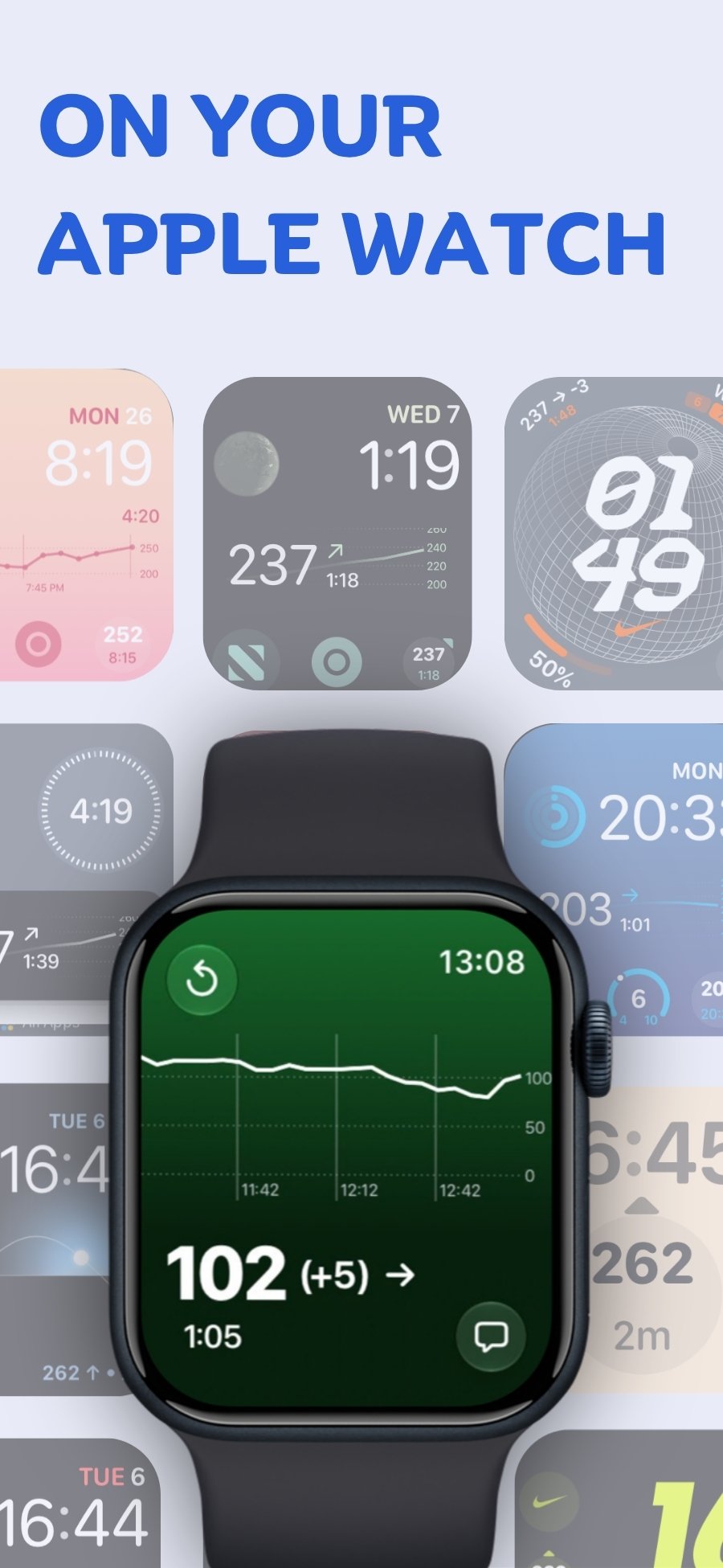
Three ways to see readings on your wrist: a frequently refreshed Live Activity in the Smart Stack, complications for every watch face, and a watch app with a graph.
Premium
How to set it up
- Install Sweet Dreams on your iPhone and sign in. The watch app installs with it.
- Live Activity (recommended): start a Live Activity on your iPhone. On watchOS 11 or later it appears in the Smart Stack; scroll down on any watch face to see it.
- Complications: long-press your watch face, tap Edit, and add a Sweet Dreams complication to any slot.
- Watch app: open Sweet Dreams on the watch for the latest reading, a timer and a graph. To keep it on screen for up to an hour, open the Watch app on your iPhone, go to General → Return to Clock → Sweet Dreams, turn on Custom and choose After 1 hour.
Details
- The Live Activity refreshes far more often than complications and is the option we recommend.
- Complications fit in with the rest of your watch face but Apple limits how often they refresh (we see every 15–20 minutes), so always check the timestamp on them.
- In the watch app the background colour changes with your thresholds, which you set under Notifications in Settings on your iPhone.
Why not just use a widget?
Widgets and watch complications are refreshed on a budget Apple sets, which we've seen work out to every 15–20 minutes, in every app. That's why glucose widgets, including those in official CGM apps, can show an old reading. A Live Activity is refreshed every few minutes instead.
Apple Watch with your device
 Free on the App Store for iPhone, Apple Watch, iPad and Apple silicon Macs.
Last updated 2026-10-12