
Home Screen, Lock Screen and StandBy widgets for your CGM readings
Home Screen, Lock Screen and StandBy widgets in several designs. For readings that refresh more often, pair them with a Live Activity.
Premium
How to set it up
- Home Screen: touch and hold an empty area, tap Edit → Add Widget, search for Sweet Dreams and pick a size.
- Lock Screen: touch and hold the Lock Screen, tap Customise → Lock Screen, then add a Sweet Dreams widget.
- StandBy: put your iPhone on a charger on its side, touch and hold the right-hand widget, tap +, search for Sweet Dreams and tap Add Widget. There are two designs.
- In StandBy you can also tap the reading at the top to see your Live Activity full screen, which refreshes more often than widgets.
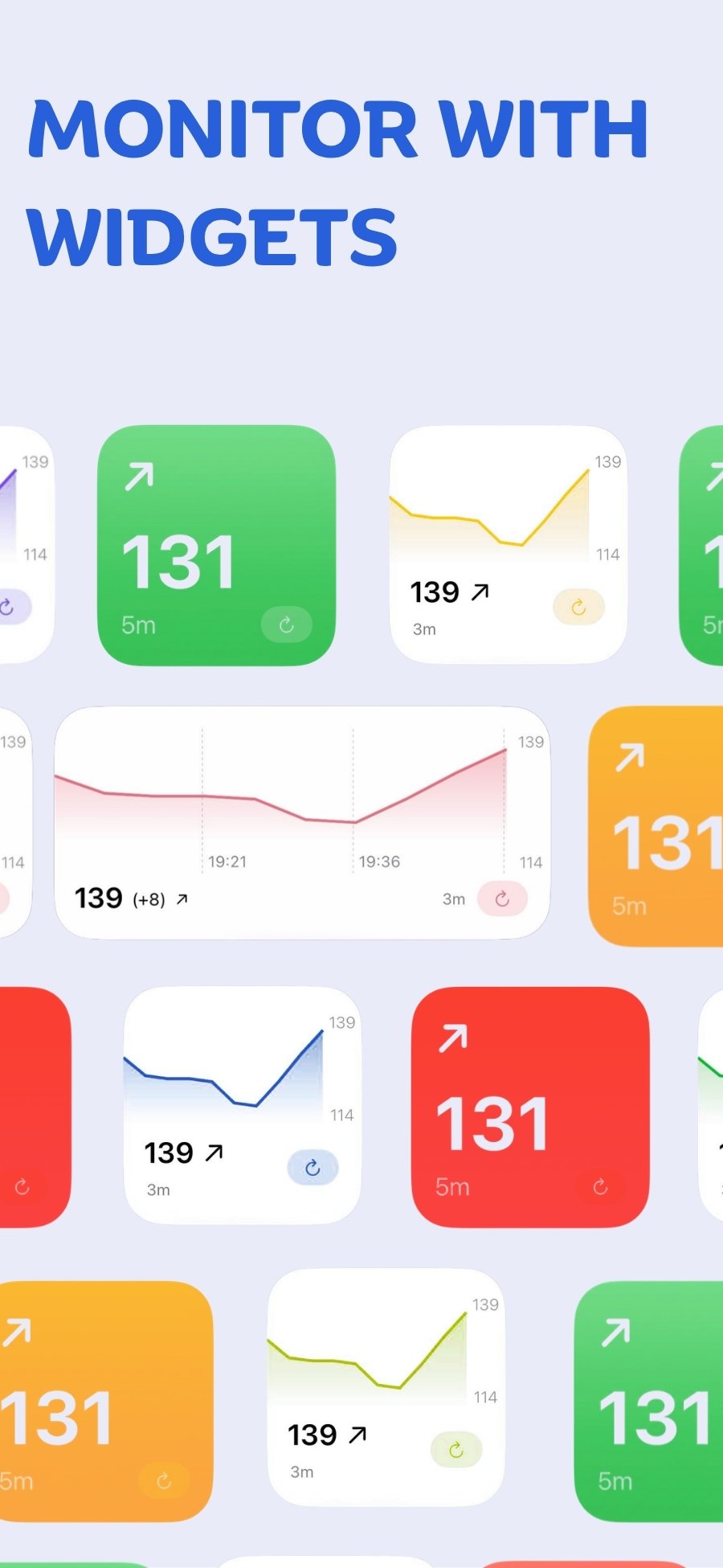
How often do widgets refresh?
Apple refreshes widgets on a budget it sets for every app, which we've seen work out to every 15–20 minutes, so a widget's reading can be a little behind. Each widget shows how long ago its reading was taken. For readings that refresh every few minutes, use a Live Activity alongside your widgets: tap the reading at the top of StandBy to see it full screen.
Widgets & StandBy with your device
 Free on the App Store for iPhone, Apple Watch, iPad and Apple silicon Macs.
Last updated 2026-10-17